1Opening the program
There are two ways to use Jersey Business Manager. We recommend installing the web app. The standalone HTML file is an alternative; its browser storage is separate.
Recommended: install it like an app
For a permanent Windows icon, select Create desktop shortcut and Pin to taskbar after installation. In Edge you can also find the app at edge://apps, open Details and create its shortcut. Inside the program, use Desktop icon / install for instructions. Downloading the HTML alone does not create a shortcut automatically.
On the website there is a button that says Install the app. Click that, then look in the address bar at the top of your browser for a small install icon, and click it. The program then sits on your desktop or in your start menu like any other program, and it works without the internet.
Alternative: the file you downloaded
When you downloaded the program, your computer saved a file called Jersey_Business_Manager.html, almost certainly into your Downloads folder.
- Make a new folder somewhere you will remember. Documents is a good place. Call it something like My Business.
- Move the downloaded file into that folder. Do not leave it in Downloads.
- Double click the file. The program opens in your web browser.
Move it out of Downloads. Records are stored in the browser, separately from the HTML file. Export a backup before moving it and retain copies outside the browser.
If you are not sure, choose Install the app. Check that it says Ready for offline use, create its icon, and export a backup after entering records.
Nothing is sent anywhere
Everything you type stays on your own computer. The program never sends your customers, your figures or your staff details to us or to anybody else. There is no account to make and no password to remember.
2Have a look round first
Before you type in a single one of your own figures, open one of the two example companies. They are made up. You cannot break anything.
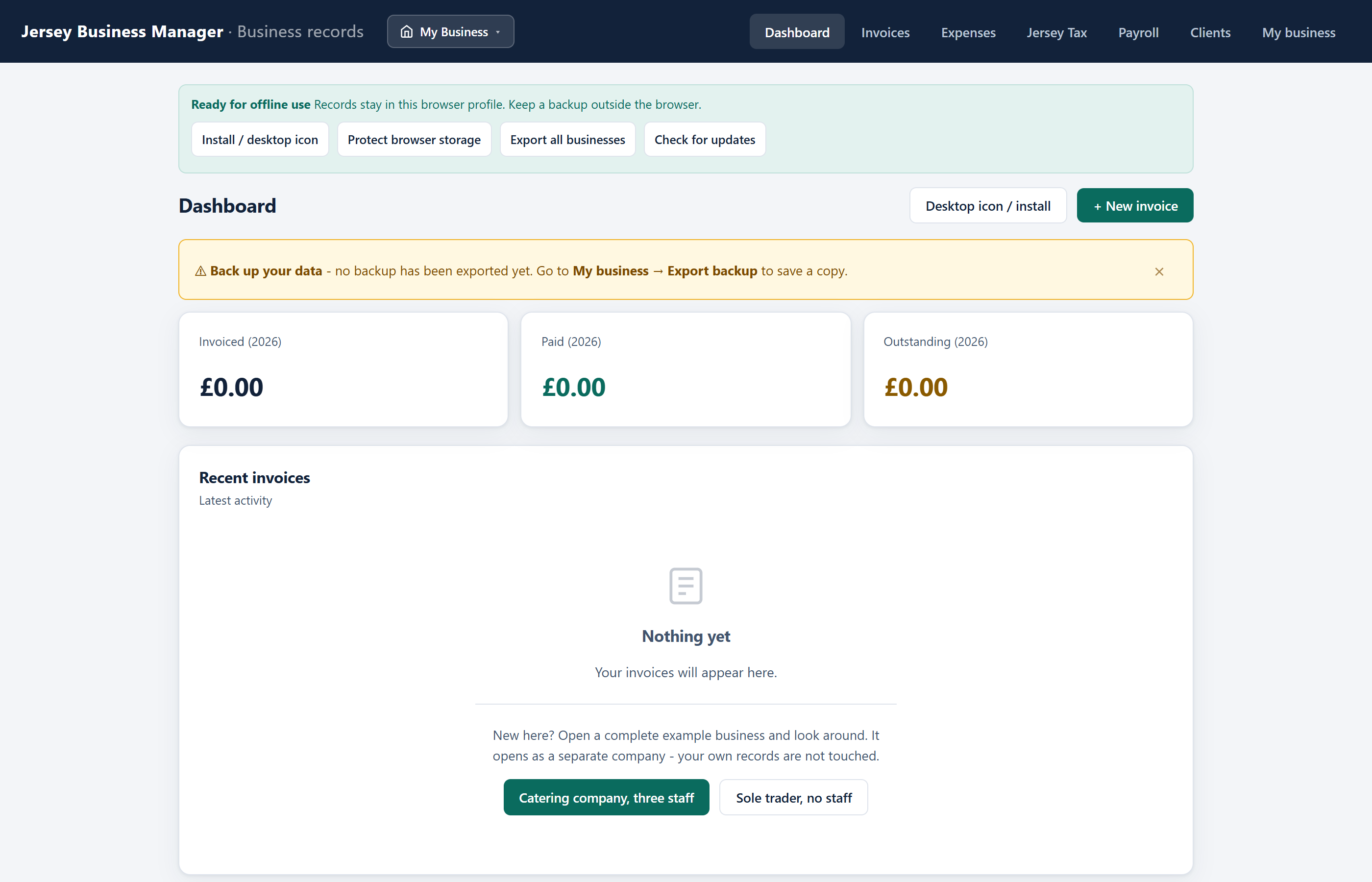
Click My business along the top, then scroll down to the box called Try it with an example company.

An example opens as a separate company of its own. Whatever you change inside it cannot touch your own records. While you are in an example there is a blue bar across the top of the screen saying so, with a button to go straight back.
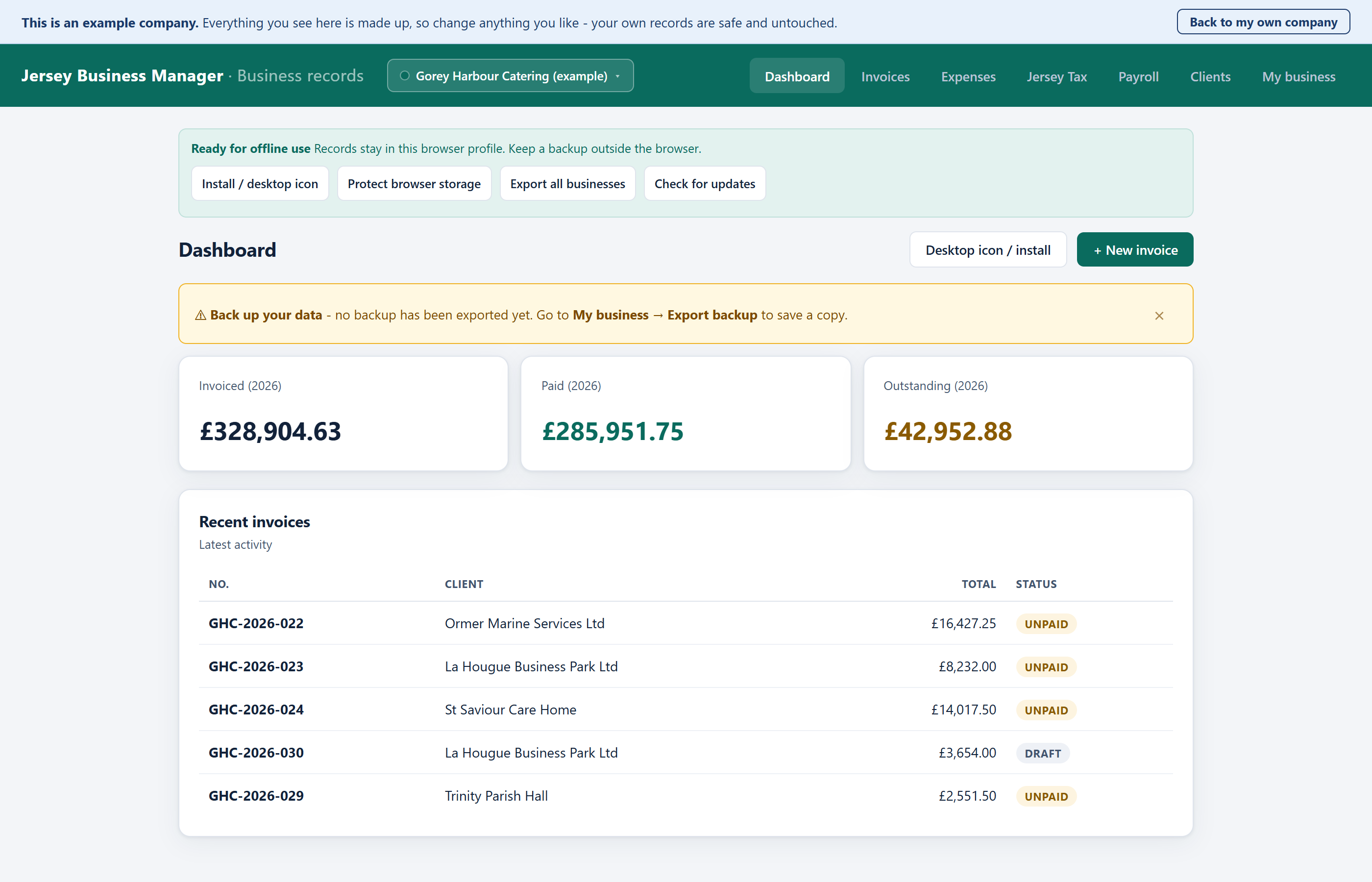

Along the top are the seven screens. Click each one and have a look. Nothing you click here can do any harm.
| Screen | What it is for |
|---|---|
| Dashboard | The quick answer to "how am I doing?" |
| Invoices | Every bill you have sent, and where you make new ones |
| Expenses | Everything you have spent on the business |
| Jersey Tax | What you owe, what you must file, and when |
| Payroll | Wages, ITIS and Social Security, if you employ anyone |
| Clients | The people and companies you invoice |
| My business | Your own details, your licence, and saving your data |
When you have finished looking, click Back to my own company in the blue bar. To get rid of the examples altogether, go to My business and click Remove the example companies. Your own records are not affected.
3Putting in your own details
Do this once. It is what appears at the top of every invoice you send, so it is worth ten careful minutes.
Go to My business. Fill in the boxes down the page, then click Save changes at the bottom. If you are not sure about a box, leave it empty and come back to it.
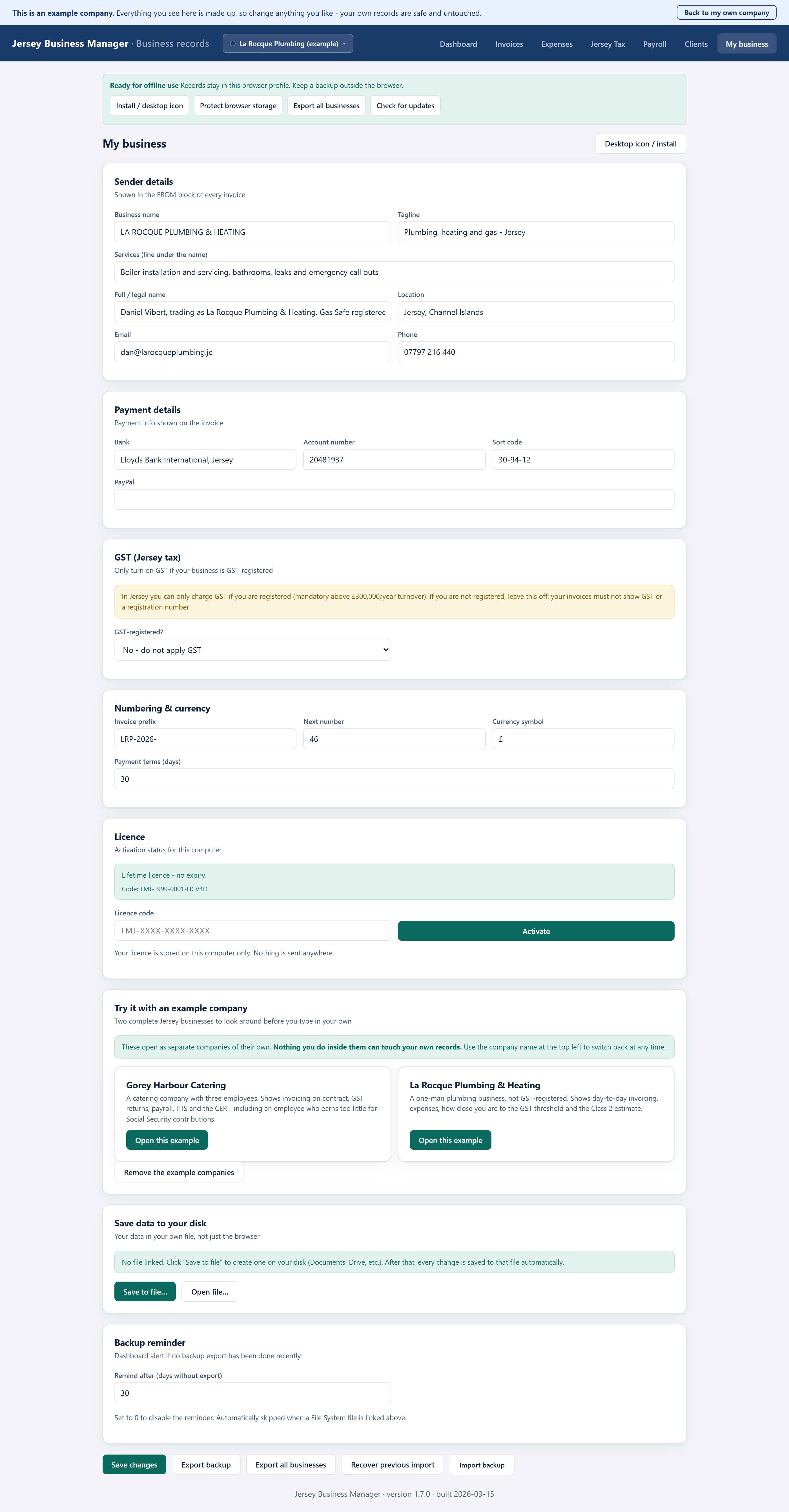
The boxes that matter most
| Box | What to put in it |
|---|---|
| Business name | How you want it to appear in big letters at the top of the invoice. |
| Legal name | Your full registered name, or your own name if you are a sole trader. This is the small print line on the invoice. |
| Bank details | Bank, account number and sort code, so people can actually pay you. Check these twice. |
| GST-registered? | Say No unless Revenue Jersey has registered you. If you say Yes, put your GST number in as well. |
| Invoice prefix | The bit before the number, for example INV-2026-. Anything you like. |
| Payment terms | How many days people have to pay you. 30 is usual. 14 is common for small jobs. |
Do not tick GST-registered because it sounds more professional. If you are not registered you must not charge GST or show a GST number. Registration only becomes compulsory once your turnover reaches £300,000 in any twelve months, and the Jersey Tax screen keeps track of how close you are.
4Your first invoice
About a minute, once your details are in.
- Click Invoices, then + New invoice.
- Pick the customer from the list. If they are not there yet, add them on the Clients screen first.
- The number and the dates fill themselves in. Change them if you need to.
- Write a short line saying what the work was.
- Add a line for each thing you are charging for: what it was, how many, and the price for one.
- Click Save.
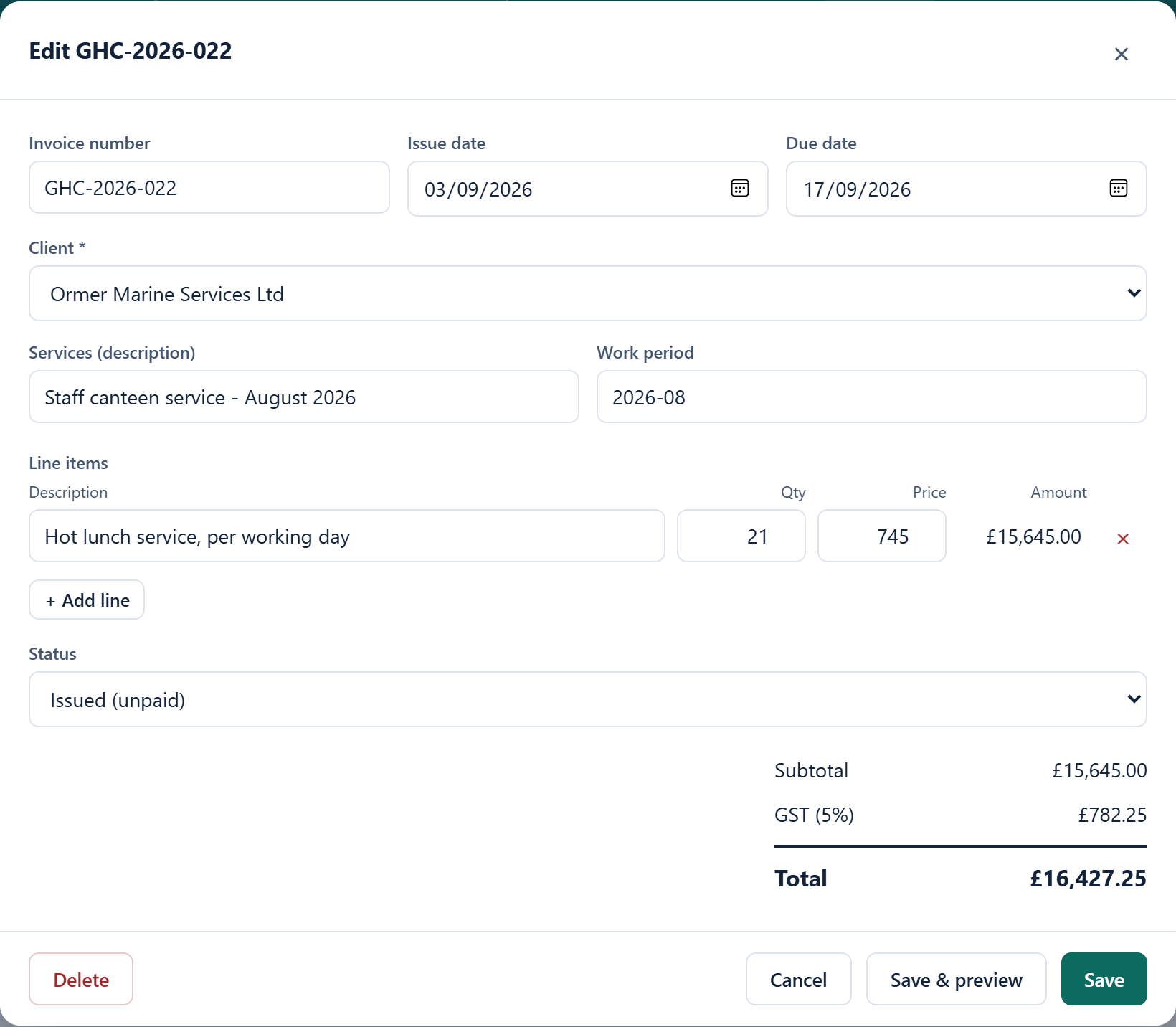
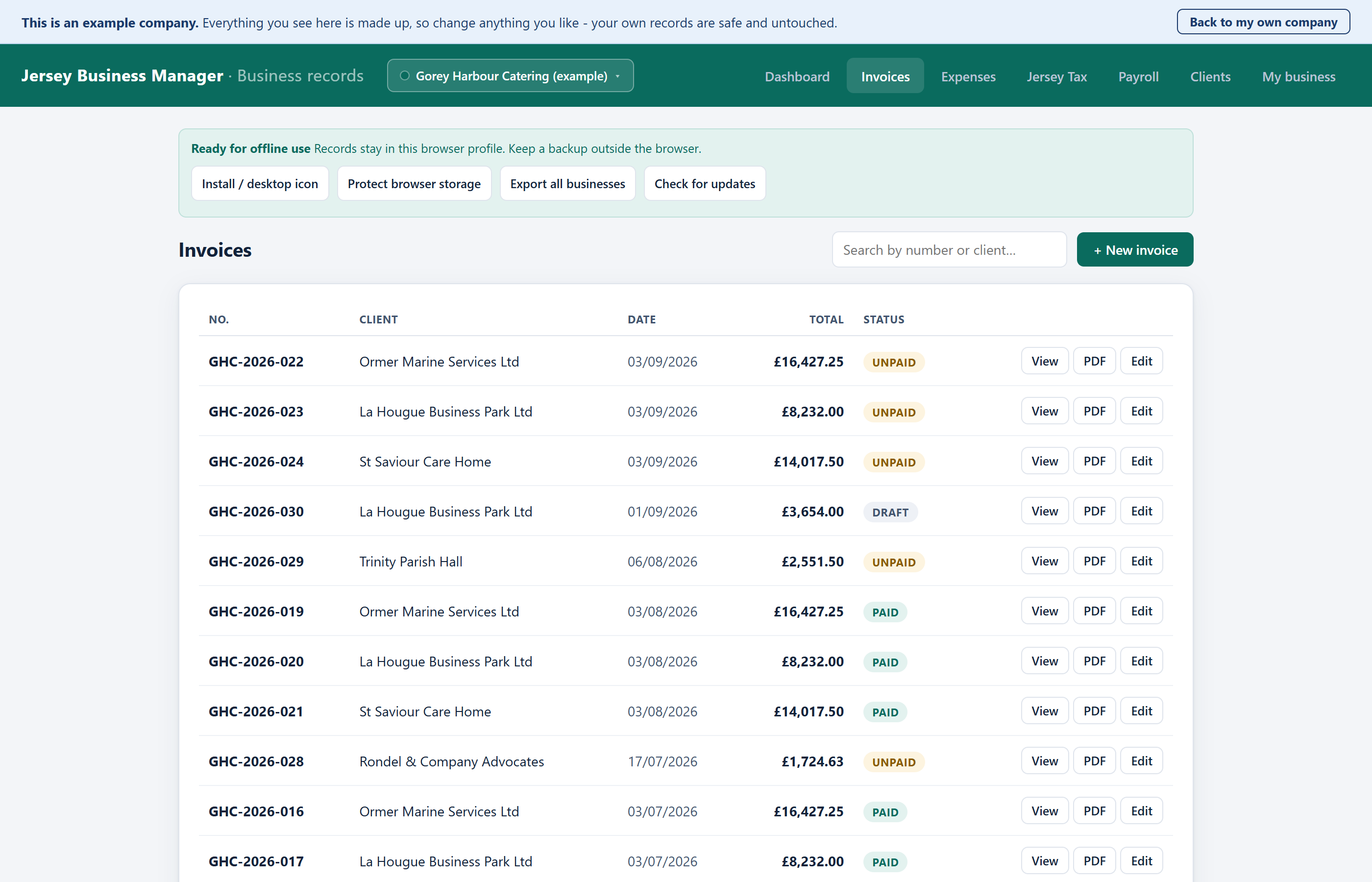
Once it is saved, click View next to it in the list. That is the invoice your customer sees.

Marking an invoice as paid
When the money arrives, open the invoice and change its status from Issued (unpaid) to Paid. That is what keeps the "still owed" figure on your dashboard honest, so make a habit of it.
Draft means you are still writing it, and it is left out of your totals. Issued (unpaid) means it has gone to the customer and you are waiting. Paid means it is done.
5What you spend
Every pound you spend on the business is a pound you may not have to pay tax on. It only counts if you write it down.
Click Expenses, then + New expense. Put in the date, the amount, what it was, and roughly what sort of thing it was. Save it. That is all there is to it.

Typing an expense in here is not the same as keeping the receipt. Jersey law says you must keep your records for six years. A shoebox or a folder on your computer is fine — just keep them.
6Jersey tax and GST
This screen does not file anything for you. It tells you where you stand and what is coming, so nothing takes you by surprise.
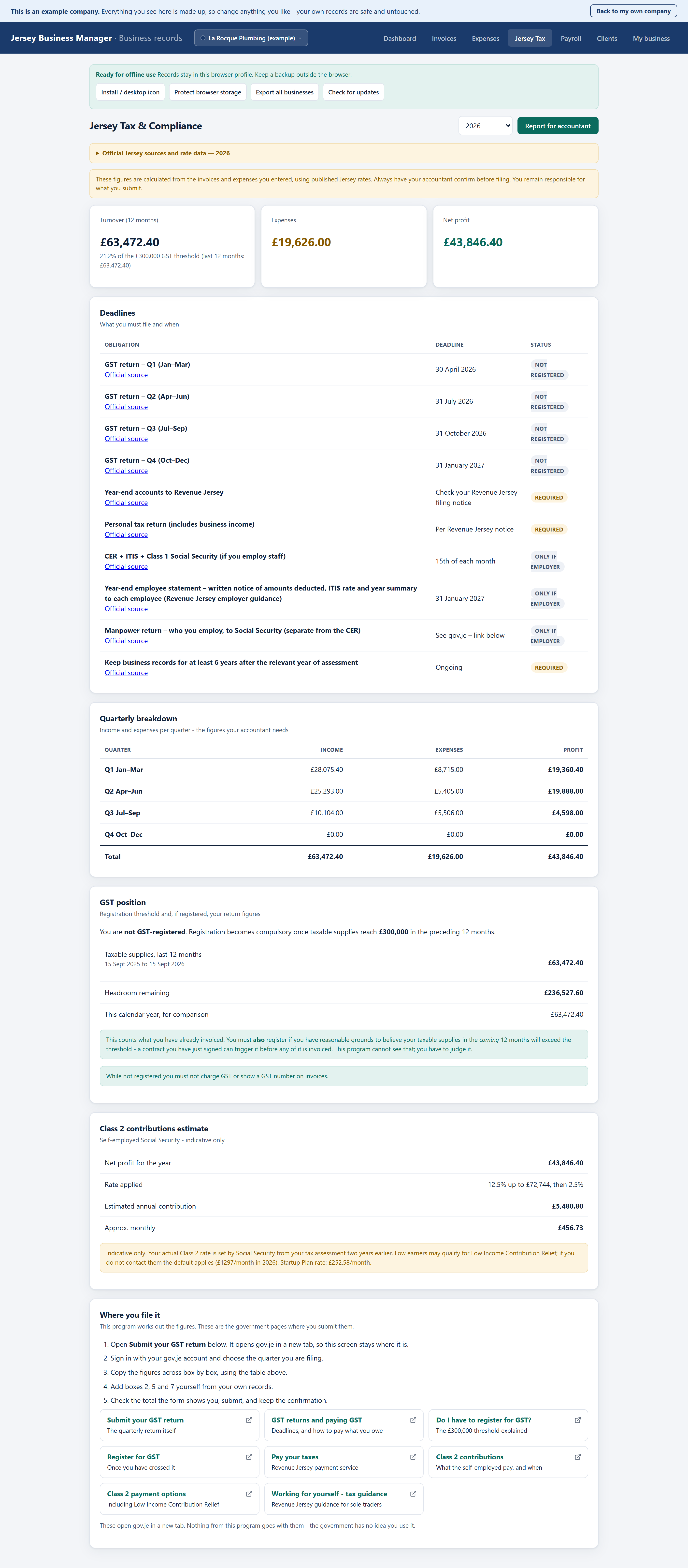
What each part is telling you
- Turnover and the threshold. Once you reach £300,000 in any twelve months you must register for GST. The percentage tells you how close you are.
- Deadlines. What you must file and by when. The ones marked only if employer do not apply if you have no staff.
- Quarterly breakdown. Income, expenses and profit for each quarter. This is what your accountant will ask for.
- Class 2 contributions. If you work for yourself you pay Social Security yourself. This is an estimate of it. Social Security set your real figure from your tax assessment two years earlier.
The Report for accountant button at the top prints all of this on one sheet.
These are calculations, not advice. Have your accountant check the figures before you file anything. You remain responsible for what you submit to Revenue Jersey.
7If you have staff
Skip this whole section if you work on your own.
Adding somebody
Click Payroll, then + Employee. You will need their Social Security number and their ITIS effective rate, which comes on the notice Revenue Jersey sends them.

If an employee has not given you a valid effective rate notice, Revenue Jersey requires you to deduct at the default rate of 22%. Do not guess a lower one.
Running the wages
Pick the month at the top. For anyone paid by the hour, type the hours they worked. Everything else calculates itself.
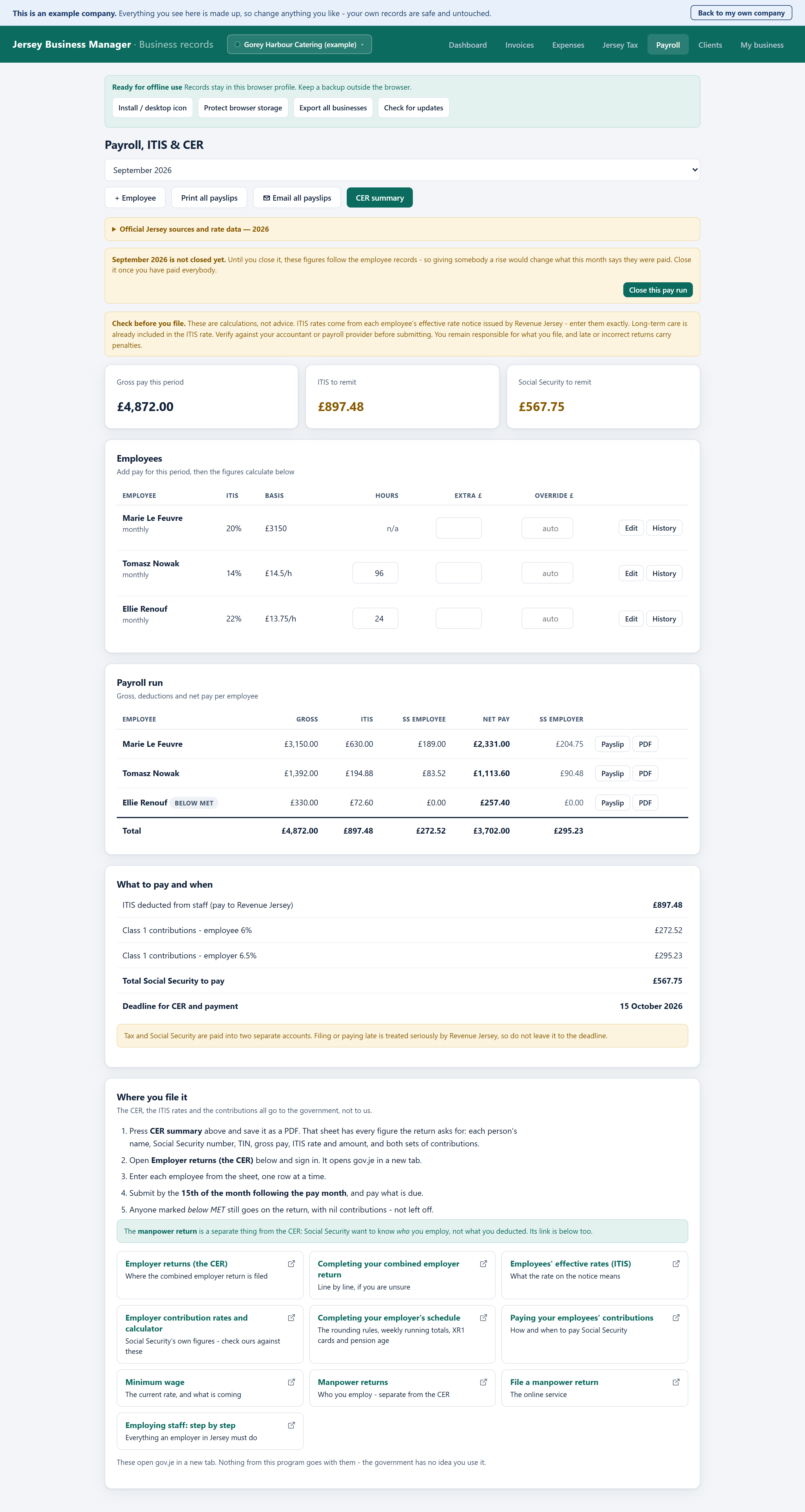
Two things you will see and wonder about
- "Below MET" next to a name means that person earned less this month than the Minimum Earnings Threshold, so no Class 1 Social Security is due for them this time. It is not a mistake.
- A warning about the minimum wage appears if you enter an hourly rate below the Jersey minimum. Check the figure before you carry on.
The Payslip button prints one person's payslip. Print all payslips does the lot. CER summary gives you the figures for the return.
Your CER, the ITIS you deducted and both halves of Social Security are due by the 15th of the following month. Tax and Social Security go to two different accounts. Revenue Jersey take lateness seriously, so do not leave it to the last day.
8Keeping your records safe
The most important page in this guide. Please read it.
Your records live on your computer, and nowhere else. That is the point of the program — but it means looking after them is your job, not ours. There are two things to do, and both are easy.
One: save your data to a file
Go to My business and find Save data to your disk. Click Save to file… and choose where to put it — your Documents folder, or better still a cloud folder like OneDrive, Dropbox or Google Drive, which copies it off your computer automatically.
After that, every change you make is written to that file straight away. You do not have to remember to save.
Two: take a backup now and then
On the same screen, Export backup makes a single file with everything in it. Keep it somewhere else — a memory stick, an email to yourself, anywhere that is not the same computer. Once a month is plenty.
If the worst happens, Import backup puts it all back.
If your computer is lost, stolen or breaks, and you have no file and no backup, your records are gone and nobody can recover them for you. Not us, not anybody. Five minutes today.
The program will put a note on your dashboard if you have not taken a backup for a while. You can set how long, or turn it off, under Backup reminder.
9Your year at a glance
What a small Jersey business is expected to do, and roughly when. The Jersey Tax screen shows the same list with your own dates on it.
| When | What | Who |
|---|---|---|
| As you go | Raise invoices, mark them paid, record what you spend | Everyone |
| By the 15th, monthly | File the CER and pay the ITIS and Social Security you deducted | Employers |
| End of each quarter | GST return, due one month after the quarter ends | GST-registered |
| Monthly or so | Export a backup and put it somewhere else | Everyone |
| 31 January | Give each employee their written year-end statement | Employers |
| January | Check your program is up to date — Jersey rates change every January | Everyone |
| By 31 July | Year-end accounts to Revenue Jersey | Everyone |
| Per your notice | Personal tax return, which includes your business income | Everyone |
| Keep for 6 years | Invoices, receipts, wage records and deduction records | Everyone |
10Questions people ask
Do I need the internet?
No. Once the program is on your computer it works with no internet at all. Nothing is uploaded and nothing is downloaded while you use it.
Where exactly are my records kept?
In two places, if you have set it up as described in step 8. The browser keeps a copy on your computer, and the program also writes everything to the file you chose with Save to file….
They are not on our computers. We could not read them if we wanted to.
Can I use it for two businesses?
Yes. Click the company name at the top left and choose Add company. Each one keeps its own customers, invoices, expenses and staff, completely separately. You can give each a colour so you always know which one you are in.

How long is the free trial, and what happens at the end?
Three months, with everything working. That length is deliberate: if you have staff, we ask you to run this alongside however you do your payroll now for two or three months and check the figures agree before you rely on it. The trial lasts long enough for you to finish doing that.
At the end the program asks for a licence code before you can carry on. Nothing you have entered is deleted — it is all still there and appears again the moment you activate. You get warnings on screen for a fortnight beforehand, so it will not catch you out.
Do I still need an accountant?
That is your decision, but this program is not one. It keeps your records tidy and shows you the figures. It does not give advice, and it does not file anything on your behalf. Most people find their accountant charges less when the records arrive in good order.
It says the rates for this year have not been added yet
Jersey rates have different effective dates; the main minimum wage changed on 1 April 2026. If the program does not yet have this year's figures it says so, in plain sight, rather than quietly using last year's. Install the latest version, and in the meantime check any figure against gov.je before you pay or file it.
Something is not working
First, close the program and open it again. That fixes most things.
If it does not, go to My business and scroll right to the bottom. There is a line giving the version number. Have that ready when you get in touch — it tells us exactly which copy you are running.